
Picking up the right Shogun 2 modding tools is the single biggest factor that decides whether a project ships or stalls, because the Total War: SHOGUN 2 modding scene runs on a small set of unpackers, table editors, and a deeply documented community workflow. Whether the goal is rebalancing a single katana samurai stat, swapping a unit roster for a Fall of the Samurai overhaul, or building a full total conversion, the same handful of utilities show up again and again. This guide walks through what each tool actually does, where it sits in the build pipeline, and how to keep the Complete Edition build and the 2011 legacy build from talking past each other. You'll find the same overlap at the modding layer, where Shogun 2 Rise Of The Samurai Mods shows how the same campaign framework still anchors the Classic and Complete Edition installs in practice.
The Modding Stack at a Glance
Before opening any single tool, it helps to see the full stack as a pipeline. Every Shogun 2 mod touches at least three layers: the compressed pack files that hold the game's data, the database tables that drive unit stats, building chains, and campaign scripting, and the front-end files that the launcher and Workshop use to publish the finished product. Tools exist for each layer, and most of the friction that beginners hit comes from trying to use a pack-file tool on something that should have been edited in the database, or vice versa.
| Layer | What Lives There | Primary Tool | Format |
|---|---|---|---|
| Pack files | Textures, meshes, UI, audio, scripted events | Pack File Manager / RPFM | .pack (Caesar IV / Empire-era archive) |
| Database | Unit stats, building chains, tech tree, factions | DB Editor (TWC DBTable / RPFM table view) | .db (SQLite-style) |
| Front-end | Workshop metadata, load order, mod manager | Steam Workshop + in-game Mod Manager | .info, .vmod |
| Scripting | Campaign events, mission scripting, AI hooks | Notepad + schema.xml references | .lua-style triggers inside packs |
| Localisation | String tables for every UI element | CSV editors with schema awareness | loc tables inside pack files |
A clean first project touches only the database and pack-file layers. The scripting and localisation layers come later, when a modder needs to add a new mechanic, branch a campaign event, or translate a custom unit name into Japanese and Chinese for the rebuilt Complete Edition client.
Why the Stack Looks the Way It Does
Creative Assembly's engine family shares tooling across Empire, Napoleon, and the two Total War: SHOGUN 2 campaigns, which is why the same pack file format covers Rise of the Samurai, the base 1530 Sengoku campaign, and the 1864 Boshin War setting of Fall of the Samurai. The DB tables share a common schema for unit cards, building effects, and faction bonuses, so a rebalance for the Shimazu in the base game usually ports over to a Fall of the Samurai sub-mod with only minor adjustments for the modernised unit roster. That shared backbone is also why veteran modders tend to recommend one or two core tools rather than a sprawling set: the fewer translators between your intent and the binary, the fewer edge cases bite you in QA.
Pack File Editing: Where Every Mod Starts
Pack file editing is the foundation layer of any Total War: SHOGUN 2 mod. The game stores almost everything — textures, models, UI layouts, audio cues, scripted battles — inside compressed .pack archives that live under the data folder of the install directory. A modder who can unpack a pack, swap a file, and repack it cleanly can already publish a texture overhaul, a unit reskin, or a sound replacement without touching a single database row.
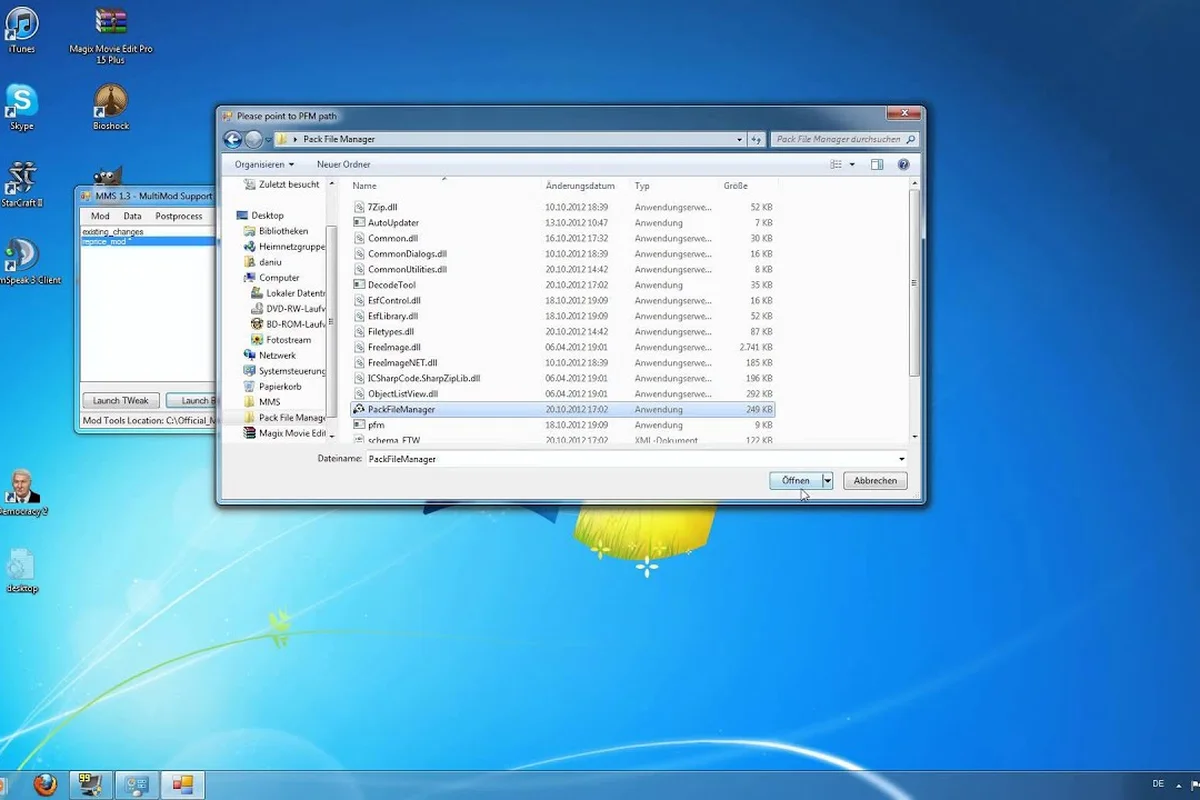
The two tools that dominate this layer are Pack File Manager (often shortened to PFM, the long-standing community utility maintained by the TWC modding community) and Rusted PackFile Manager (RPFM), a newer cross-platform successor written in Rust. Both can open, view, and edit .pack archives directly, and both understand the game's internal folder layout, which means a file dragged into the right virtual folder inside the editor lands in the right place inside the archive.
| Feature | Pack File Manager | Rusted PackFile Manager |
|---|---|---|
| Platform | Windows | Windows / macOS / Linux |
| Active development | Maintenance mode | Active, frequent updates |
| Schema awareness | Limited | Full DB schema with autocomplete |
| Pack editing | Yes | Yes |
| DB table editing | No (external) | Built-in |
| Best for | Legacy compatibility | New projects |
For a brand-new project in 2026, RPFM is the better starting point because it ships with an integrated table view and tracks schema updates as Creative Assembly tweaks the data. For a mod that has to ship alongside an existing 2011-era build, Pack File Manager sometimes wins on raw compatibility, because some long-lived mod packs were authored against its specific quirks and refuse to round-trip through RPFM without warnings. Most modders keep both installed and switch based on whichever one opens the offending pack cleanly.
A Clean Pack-Edit Workflow
A typical first pack edit goes something like this: locate the pack that contains the file you want to change (for unit textures, this is almost always roman_imperial.pack or a faction-specific sibling), open it in RPFM, drag the replacement file into the matching virtual path, save a copy of the pack under a new name so the original stays untouched, drop that renamed pack into the data folder of a fresh mod directory, and subscribe to the result from the Workshop uploader.
Two rules save a lot of pain here. First, never edit a pack in place; always copy it, rename it, and edit the copy, because a single corrupted pack can wedge the launcher and force a verify. Second, keep the original filename structure intact — the engine resolves many assets by exact path, and a texture placed in ui/skill_icons/ will not be picked up if it lives in UI/Skill_Icons/ instead, because pack file lookups are case-sensitive on most platforms.
The DB Editor: Where Stats and Systems Live
If pack file editing is the foundation, the database editor is the structural framing. Every numeric value the player sees — a yari ashigaru's melee attack, the cost of a matchlock samurai, the bonus a castle province grants to defence — lives in a DB table, and changing those numbers is what most mods call "real modding." The community standard for this layer has shifted over the years, but the current best practice is to use RPFM's built-in table view for casual edits and the TWC DBTable Editor (sometimes called the Althaea editor after its long-time maintainer) for heavy schema work.
A DB table edit on a single unit usually goes like this: open the units_tables DB inside RPFM, filter to the unit by its key (for example yari_ashigaru), change the melee_attack, melee_defence, or cost columns, save, and repack. That change propagates everywhere the unit is referenced, including the Fall of the Samurai sub-mod, because both campaigns share the underlying schema for most core units.
Critical Tables Worth Knowing
| Table | Holds | Common Mod Use |
|---|---|---|
units_tables | Per-unit stats, cost, recruitment building | Rebalance, stat tweaks |
unit_stats_land | Land unit combat attributes | Combat overhaul |
building_chains | Province building tree, effects | Economy overhauls |
technologies | Research tree, mastery of the arts | Tech rebalance |
factions | Clan starting position, bonuses, traits | New factions |
campaign_map | Map data for the strategy layer | Map overhauls |
battle_set_pieces | Settlement and battlefield layouts | Siege overhauls |
A common first project is rebalancing a single underused unit — say, giving the naginata samurai a slight melee defence buff so the unit becomes a viable mid-tier option in a Takeda stack. The change happens entirely inside units_tables, takes five minutes, and produces a result the player can feel in the very next campaign turn.
A DB Editor Workflow for Beginners
For someone who has never opened a DB editor before, the path of least resistance is: install RPFM, point it at the Shogun 2 install directory so it can read the schema, open units_tables, find the unit you want to change, edit one number, save, launch the game, and check the result. That single loop teaches the workflow without the overhead of learning pack repackaging, schema migration, or load-order management all at once.
Once that loop is comfortable, the next step is changing related tables in the same patch — bumping the unit's recruitment cost in units_tables, adjusting its building requirement in building_chains, and giving it a small bonus in technologies if the rebalance is meant to unfold through a specific tech. The pattern repeats until the mod is a small ecosystem of coordinated changes, each one tracked through version control and changelog notes so that conflicts with other mods can be diagnosed without a full uninstall.
Building a Mod End-to-End: From Idea to Workshop
A first full mod — a small unit pack or a focused rebalance — is the right level of scope for learning the workflow, because it exercises every layer without dragging in scripting or localisation. A realistic end-to-end pipeline for a beginner mod project looks like this: define the scope in a one-page design doc, set up a mod folder under data/, install both Pack File Manager and RPFM, identify the tables and packs to change, make the changes in small commits, repack, test in-game, iterate, and finally publish through the Steam Workshop uploader.
Choosing the Right Scope
Scope is the variable that decides whether a first project ships in a weekend or dies in month three. Mods that touch a single unit, a single building, or a single technology are realistic first projects. Mods that touch all three plus a custom UI plus a campaign event tend to stall, because each additional layer multiplies the QA burden. Community experience bears this out: most of the durable Shogun 2 mods on the Workshop are either tightly scoped balance overhauls or large total conversions built by teams of five or more, and there are surprisingly few successful projects in the middle.
A useful heuristic is to ask whether the mod can be described in a single sentence. "Buff naginata samurai melee defence by five and reduce recruitment cost by fifty koku" is a great first project. "Rebalance the entire Sengoku Jidai with historically accurate troop ratios" is a five-year research project that needs a team. The Workshop rewards the first and buries the second, because players can verify a focused mod in a single campaign and either subscribe or unsubscribe without ambiguity.
Versioning, Load Order, and the Mod Manager
Once a mod is more than a single file, versioning becomes the main engineering problem. The Steam Workshop handles distribution, but it does not enforce semantic versioning, and there is no built-in dependency resolver, so a mod that depends on another mod's framework has to declare that dependency in its description and hope the player reads it. Load order matters for mods that touch the same tables, because the last-loaded pack usually wins, and a broken mod pushed to subscribers can disable the game until they unsubscribe.
For practical load-order management, the in-game Mod Manager — accessible from the launcher — is the right tool, and a recent mod manager enablement walkthrough covers the May 2023 patch changes that briefly hid the option. The basic rule is: load framework mods first, then content mods, then visual overrides, and never put two mods that edit the same DB table on the same load position without testing the merge.
The Shogun 2 Modding Community in 2026
The community is the third pillar of the stack, alongside the tools and the data. Without a place to ask questions, share schema discoveries, and coordinate compatibility testing, even a well-tooled modder stalls on the first error they cannot Google. The good news is that the Shogun 2 modding community has stayed active well into 2026, and the recent Complete Edition rebuild has brought a fresh wave of contributors who are publishing their first mods alongside veterans who have been working with the same pack files since 2011.
Where the Community Actually Hangs Out
| Resource | What It Offers | Best For |
|---|---|---|
| Steam Workshop | One-click install, automatic updates | Subscribing to mods |
| Mod.io (in Complete Edition) | In-game browser, no Steam overlay needed | Discovering mods inside the launcher |
| TWC Forums | Deep technical threads, schema documentation | Tooling questions |
| Reddit r/totalwar | Mod showcases, balance discussion | Visibility and feedback |
| YouTube tutorials | Visual walkthroughs of common edits | First-time setup |
| Discord servers | Real-time troubleshooting | Quick questions |
The most important resource for a beginner is the TWC (Total War Center) forum's pinned modding guides, because they cover the schema quirks that no tool will warn you about — for example, that adding a new entry to units_tables without a matching row in unit_stats_land causes a hard crash the first time the unit is recruited, or that the Fall of the Samurai campaign has its own set of units_tables overrides that need to be edited separately.
A Note on the Complete Edition Rebuild
The Complete Edition rebuilt the Shogun 2 client for modern hardware, with reworked lighting, 4K UI scaling, and new Japanese and Chinese voice acting according to the Total War: SHOGUN 2 Complete Edition store page. That rebuild touched the file layout, which means a small number of legacy mods — particularly those that edited UI scaling tables or relied on specific font files — stopped loading after the 2026 update. The 2011 Steam Workshop catalogue still hosts the long back catalogue of total conversions, realism overhauls, blood mods, and unit packs, and the Complete Edition's Mod.io browser adds an in-game layer on top, so most mods are reachable through one route or another.
For a modder, the practical implication is that a new project should be tested on both the legacy 2011 build and the Complete Edition client before publishing, because a mod that works on one and breaks the other will lose half of its potential subscribers. Fall of the Samurai sub-mods, in particular, need an explicit compatibility check, because the Boshin War campaign added new provinces (Hokkaido, Tanegashima, Tsushima, and Goto) and shifted the turn structure to twenty-four turns per year, six per season, which changes how armies move and how attrition accumulates across a long campaign.
Frequently Asked Questions
What is the minimum tool set to start Shogun 2 modding?
A beginner can start with just Rusted PackFile Manager and a text editor, because RPFM handles both pack file editing and DB table viewing in one application. Add the Steam Workshop uploader for distribution and Notepad++ or VS Code for any out-of-pack text edits, and the basic loop of open-edit-save-test is covered without spending on any paid software.
Do Shogun 2 mods work on both the 2011 build and the Complete Edition?
Most mods do, but the Complete Edition rebuild changed the file layout and added new UI scaling, so mods that touched font files, specific UI tables, or 4K assets sometimes fail to load. A mod that targets both should be tested on each client before publishing, with a clear note in the Workshop description about which build is supported.
Where can I find documentation for the Shogun 2 DB schema?
The TWC modding forums host the most complete schema documentation, with pinned threads covering each table's purpose, the relationship between units_tables and unit_stats_land, and the Fall of the Samurai-specific overrides. The schema inside RPFM is the second-best reference, because it autocompletes from the live game files and stays current as Creative Assembly patches.
Is it possible to mod Fall of the Samurai separately from the base game?
Yes, Fall of the Samurai uses its own campaign map, its own unit roster with modernised variants, and its own tech tree, but it shares the underlying pack file format and most of the DB schema with the base 1530 Sengoku campaign. A mod that targets Fall of the Samurai only needs to be loaded when that campaign is active, and the Mod Manager lets players filter by campaign to avoid conflicts.
What causes a Shogun 2 mod to break after a Creative Assembly patch?
Most post-patch breakages come from schema changes — Creative Assembly adds or renames a column in units_tables or building_chains, and mods that referenced the old column crash on load. The mitigation is to subscribe to the TWC modding announcements and check for a compatible update within a week of any major patch, or to author mods against a stable schema in RPFM and pin that schema in the mod description so subscribers know which build the mod is locked to.